
Animate to the beat
Put music under your video and Mixture finds the beats for you. Any animation can then fire on the beat — a logo that punches on every hit, a background that flips black and white in time, a promo that cuts between shots on the music. No hand-typed timestamps, and if you swap the track, everything re-syncs to the new one.
Where beats come from
Section titled “Where beats come from”Beats are detected automatically from the audio itself — a music track, an audio layer in a scene, or even a video clip’s own soundtrack. There’s nothing to run: add the audio and the beats are there when you need them.
Honestly, though: the detector listens for percussive hits — drums, claps, plucks. Music with a clear beat gives clean results. An ambient pad or a drone has no transients to find, so it produces few or no beats. It’s a hit-finder, not a tempo tracker — if a track has no audible beat, don’t expect one.
An animation anchored to a beat that never arrives simply doesn’t fire. That’s a normal outcome, not an error.
Anchor an animation to a beat
Section titled “Anchor an animation to a beat”Any animation’s start time can be a beat instead of a number. Select an animation, and in its timing settings change When to On a beat — the option appears as soon as the scene has an audio source. Pick the Source track, and the animation fires on its beats.
Two more controls do most of the work:
- Every — fire on every Nth beat.
1is every beat;2is half-time, which often feels calmer and more intentional;4is once a bar in most music. - Offset — nudge every hit earlier or later by a fraction of a second, for a lead-in or a lag.
Or skip the panel and describe it: press ⌘K and type “pulse on every beat” — the animate palette understands beat phrases directly.
Keep beat hits short: 0.1–0.25 s with an ease-out reads as a punch; a long tween blurs the hit. And pulse one focal element — the logo, the title, one accent. Everything flashing on every beat is noise, not rhythm.
For the curious: what a beat anchor looks like in the project JSON
A beat anchor replaces the animation’s start time:
{ "kind": "property", "target": { "type": "layer", "layerId": "logo" }, "property": "scale", "from": 1, "to": 1.12, "timing": { "start": { "type": "beat", "sourceLayerId": "music", "every": 2 }, "duration": 0.16 }, "easing": "easeOut"}Two fields the panel doesn’t expose yet, for JSON or agent authoring:
index— a single specific beat (the k-th) instead of a repeating run.startIndex— phases aneveryrun:{ "every": 3, "startIndex": 1 }fires on beats 1, 4, 7… so several animations can round-robin one track.
One subtlety: beats are counted within each scene, starting from the first beat heard in that scene — so “every 4th beat” means the 4th beat of this scene, not of the whole song.
Cuts on the beat — the beat switcher
Section titled “Cuts on the beat — the beat switcher”The classic music-video move: a different shot on every beat. Mixture has a dedicated tool for it, the beat switcher — stack your elements in a group, and it cycles them one visible at a time, switching on each beat.
Select the group, press ⌘K, and type “switch on every beat” (or “every 2 beats”). The switcher lands on the timeline as one named animation, and it cycles the group’s children in order — add or remove a child and the cycle adapts on its own.
Stack the elements at the same spot so they swap in place. Two full-frame rectangles make a black/white background flip; five photos make a beat-cut montage. More children just means a longer cycle.
For the curious: the switcher in the project JSON
{ "kind": "switcher", "target": { "type": "group", "groupId": "shots" }, "source": "music", "every": 1, "order": "forward", "startVisible": "first"}order can also be "pingpong" or "random"; startVisible: "none" hides
everything until the first beat.
A combination that works: a switcher flipping the background plus a single title pulsing on the half-time beat. Two things in rhythm beats five things all flashing at once.
Beyond anchors: audio as data
Section titled “Beyond anchors: audio as data”Beat anchors animate layers that already exist. The data system goes one step further — it can make layers exist per beat, and make properties follow the track’s loudness:
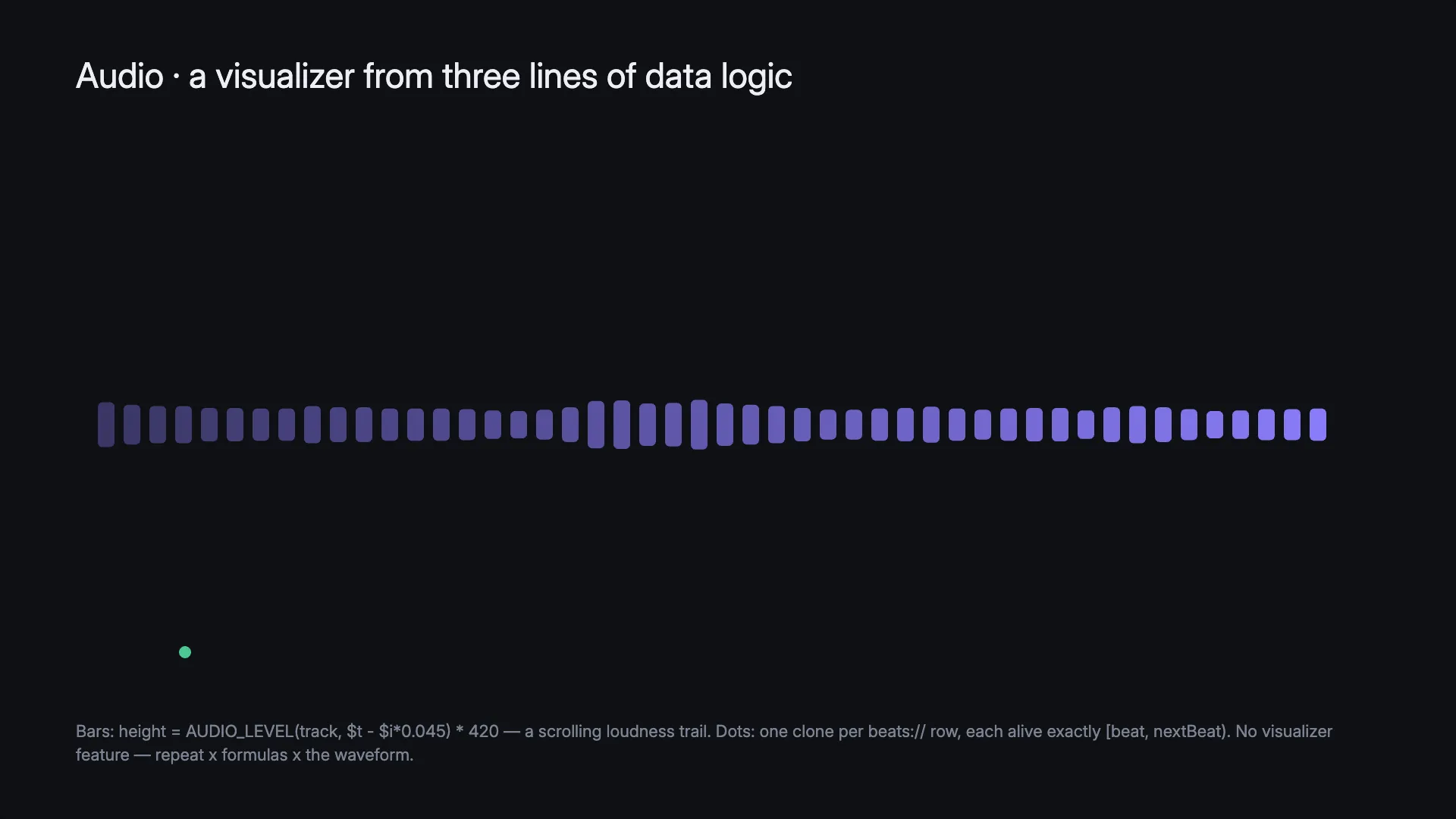
beats://rows — a repeated layer gets one copy per detected beat, each carrying its beat’s time and interval. A flash, a marker, a lyric card per beat.AUDIO_LEVEL— a formula that reads the track’s loudness at any moment. Repeat a bar 48 times, bind its height to the level, and you’ve built a custom audio visualizer.
Both live in the data-driven video guide — this page’s anchors and that page’s rows are the two halves of the same music story.